Need to print a document or send a fax in Korea at short notice? Search for a nearby self-service print shop, check that it offers the service you need, and prepare your file before leaving. This photo guide explains what to look for inside and how to avoid choosing the wrong paper size, paying for unwanted pages or leaving documents behind.
The photographs show a PRINT CAFE shop as an example. They illustrate the equipment, posted instructions and prices at that location; screens, opening hours and charges can differ elsewhere.

Where to print, scan or send a fax in Korea
Try these Korean search terms in your map app, followed by your current neighbourhood or a nearby station. A shop close to your accommodation may be more useful than travelling to a particular branch featured online.
- 프린트카페 — PRINT CAFE, the brand shown in these photos.
- 무인 프린트 — self-service printing.
- 인쇄 / 출력 — printing a digital file.
- 복사 — photocopying a paper original.
- 스캔 — scanning paper into a digital file.
- 팩스 — fax. Add 24시 when searching for a late-night option.
PRINT CAFE provides an official store search and usage guides, including English instructions for printing, copying, scanning and faxing. Check the individual listing and the notices inside the shop. A 24-hour sign at one location does not establish the hours of every store.
Before you go: prepare the right file
- Save a PDF copy when possible and open it once to check that fonts, images and page breaks look correct. Keep the original editable file as a backup.
- Check the required paper size, colour setting, number of copies and whether the recipient accepts double-sided pages.
- Bring the file on a USB drive if the shop supports USB access. If using email or cloud storage, make sure you can access the file without relying on a device you left behind.
- For faxing, confirm the recipient’s full fax number, including the area code, and ask whether they need a cover sheet or a particular page order.
- Check payment options before starting a large job. Do not assume that an overseas card, cash or a particular mobile wallet will work at every terminal.
Keep a little time between printing and any appointment. A busy machine, paper issue or card problem can matter more than the few minutes needed to print a short document.
How to print a document at a self-service shop
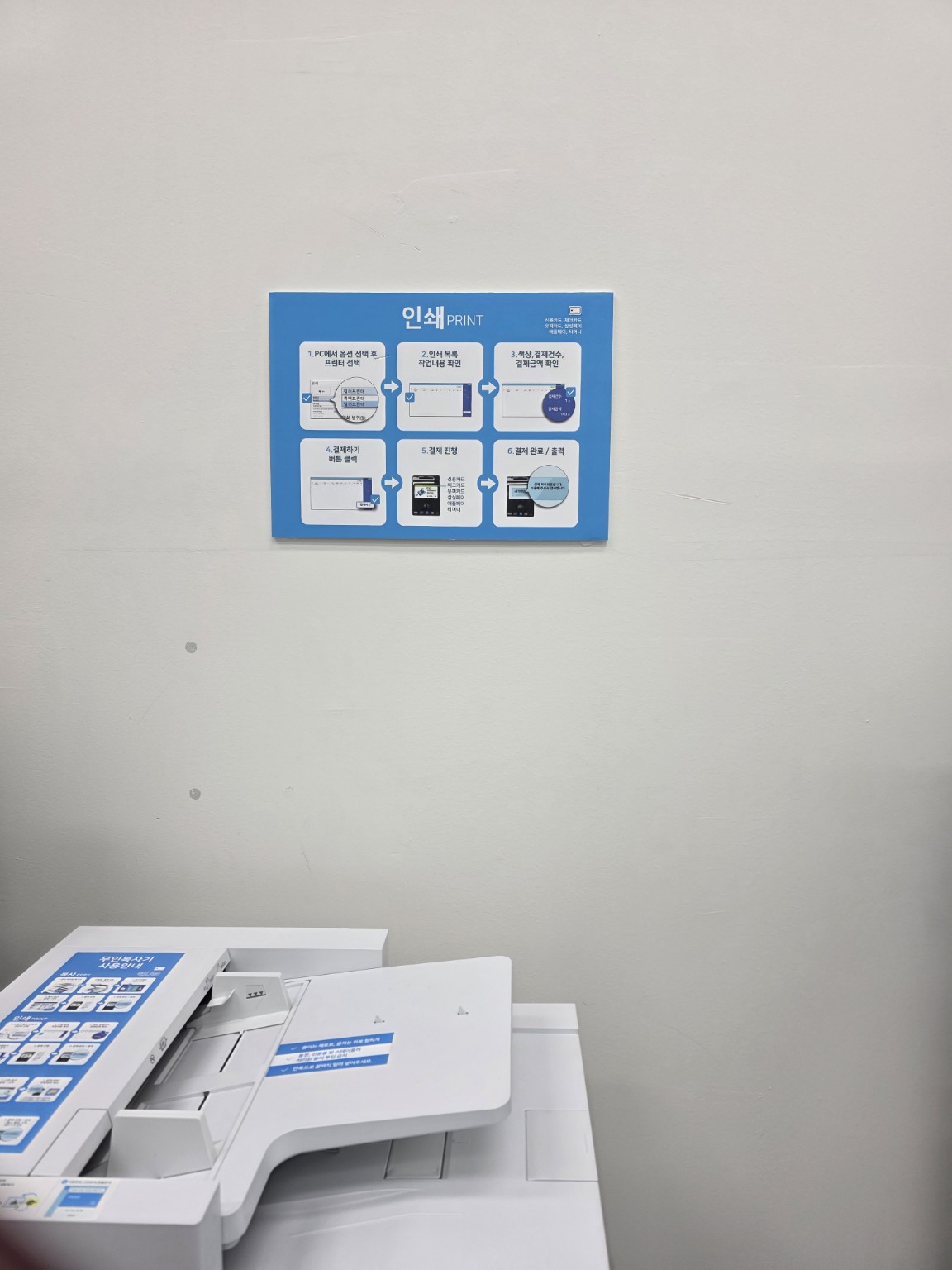
- Choose a workstation and printer. Read the signs above the PC. The photos show stations labelled for different paper sizes, so check the label before sending your file.
- Open your document and select Print. Confirm the printer assigned to that station rather than accepting an unfamiliar default printer.
- Review the preview. Check paper size, page range, colour or black-and-white, copies, orientation and single- or double-sided printing. Avoid printing an entire attachment when you only need one page.
- Check the queued job and charge. The posted instructions show a job list and a payment step. Confirm that the listed job is yours and the settings are correct before paying.
- Follow the payment screen and collect the pages. Check page count, legibility and any required signatures or stamps before leaving.
For an unfamiliar form, one test page can help you catch clipped margins or an incorrect scale before paying for several copies. Use “actual size” or a scaling option according to the document’s requirements; neither setting is right for every file.
Copying and scanning: choose the correct function
Copy makes another paper copy. Scan creates a digital file. If an office asked you to email a PDF, making a photocopy will not complete that task.
Follow the machine’s diagram for placing originals on the glass or in the document feeder. Keep staples and unsuitable items out of the feeder, and use the glass for a bound or delicate original when the machine instructions allow it. For scanning, check the supported destination on that machine before starting.
Open the saved scan to check that every page is present, upright and readable. Confirm the file type and page order before submitting it, then collect all originals from both the glass and the feeder.
How to send a fax
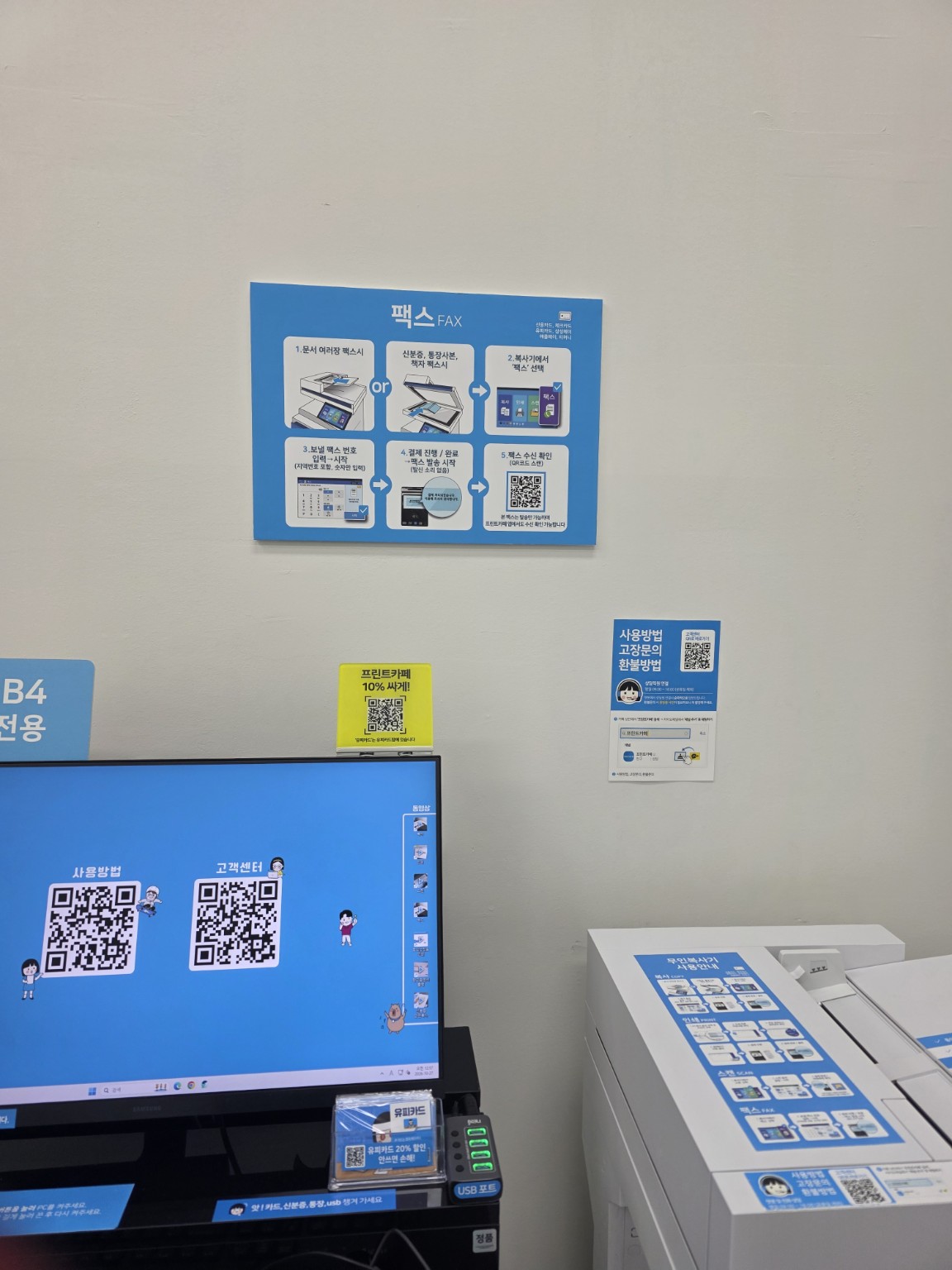
- Prepare the paper pages. Put them in the required order and follow the diagram for the correct face-up or face-down orientation. Use the glass for items the feeder cannot handle.
- Select Fax (팩스). Enter the complete destination number carefully. Recheck each digit against the number supplied by the recipient.
- Review and pay as prompted. Check the page count and displayed charge before authorising the job.
- Wait for the result. A payment completion screen alone is not proof of successful delivery. Follow the machine’s transmission-status or confirmation instructions.
- Confirm receipt when it matters. Keep the result or receipt and contact the recipient if the document is urgent or the status is unclear.
The photographed fax poster includes a QR code for checking the result. Use the instructions beside the machine you are actually using, since the verification process may differ. For an international fax or an unusual destination number, confirm support and charges before paying.
How much does printing cost? A photographed example
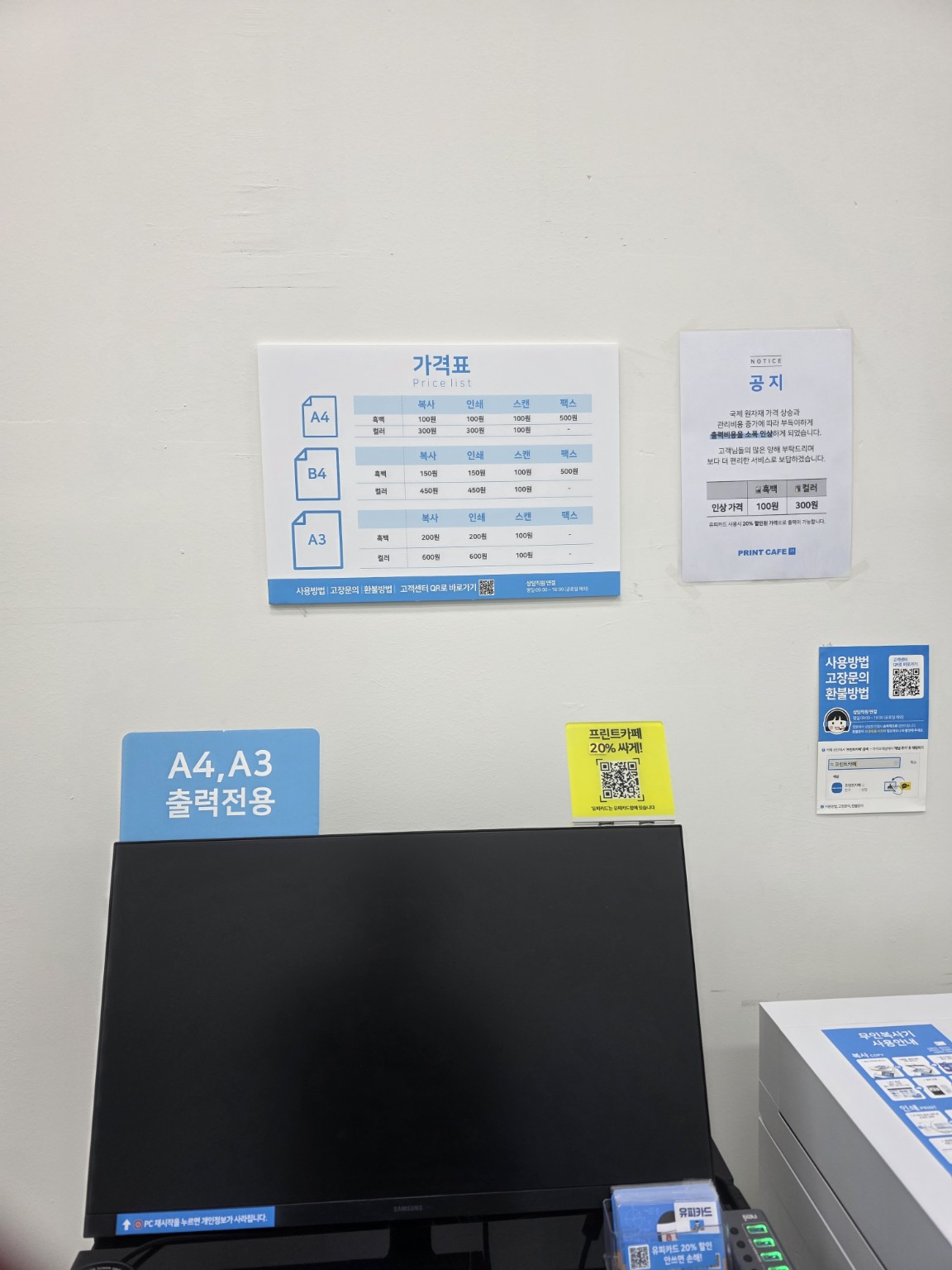
The board shows the following A4 prices: black-and-white printing or copying ₩100, colour printing or copying ₩300, scanning ₩100 and fax ₩500. It also lists different print and copy prices for B4 and A3. Check how your machine counts pages or printed sides and use its displayed total as the price to review before payment.
For a simple estimate, five single-sided A4 black-and-white pages would be ₩500 at the photographed ₩100 rate, before any different settings or additional charges. Treat this as an example calculation and check the current board and checkout screen at your chosen shop. Posted promotions may have their own conditions.
Before leaving: collect your files and belongings
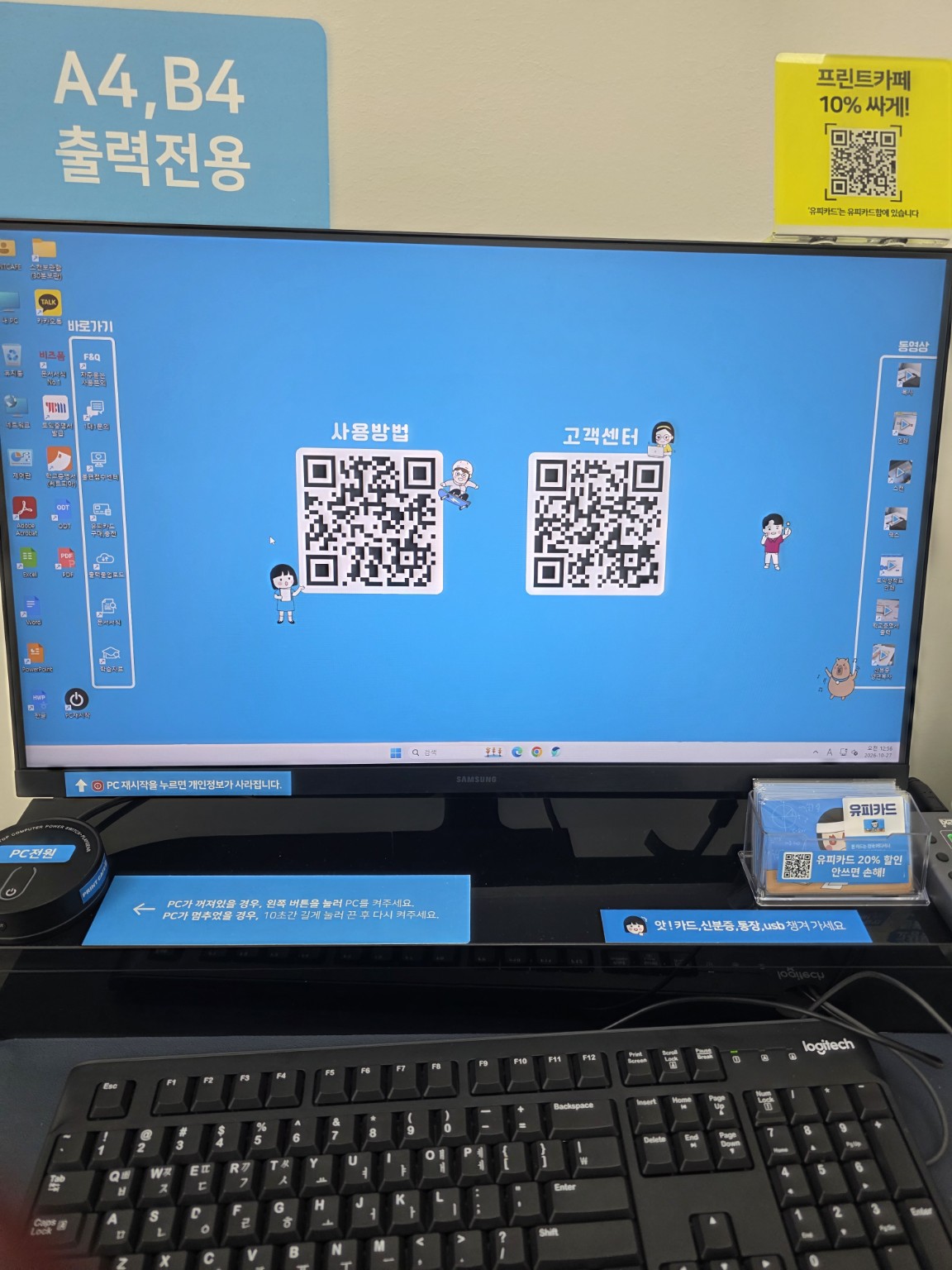
The workstation in the photo has a notice stating that restarting the PC clears personal information. Still, finish by signing out of any email or cloud account, closing documents and removing any files you downloaded where possible. Follow the shop’s end-of-session or restart instructions. A notice about clearing data is not a guarantee that a shared computer is suitable for every sensitive document.
- Collect the printed pages and every original, including anything left on the copier glass.
- Remove your USB drive and payment card.
- Check the fax result or scan file before ending your session.
- If a job fails, note the machine number and keep any receipt. Use the posted support contact before paying for repeated attempts.
A quick checklist for an urgent job
Find a nearby open shop → confirm printing, scanning or fax support → prepare the file or originals → check settings and total → pay → inspect the output or fax result → sign out and collect everything.
Once you know the Korean labels and the difference between printing, copying and scanning, the equipment is easier to navigate. The most useful checks happen before payment and before leaving the workstation.
For another everyday task, see our photo guide to Korean convenience-store self-checkout. If you need transport to a nearby shop, our city bus guide explains boarding, stop buttons and tapping off.
Official references: PRINT CAFE, store search and usage instructions. Prices and equipment examples are based on the photographs in this guide.
About the author
ferry is a Korea-based writer sharing practical travel and food guides, original photographs and local visit reports. About the writer and editorial process · Contact and corrections